What Is Google Search Console?
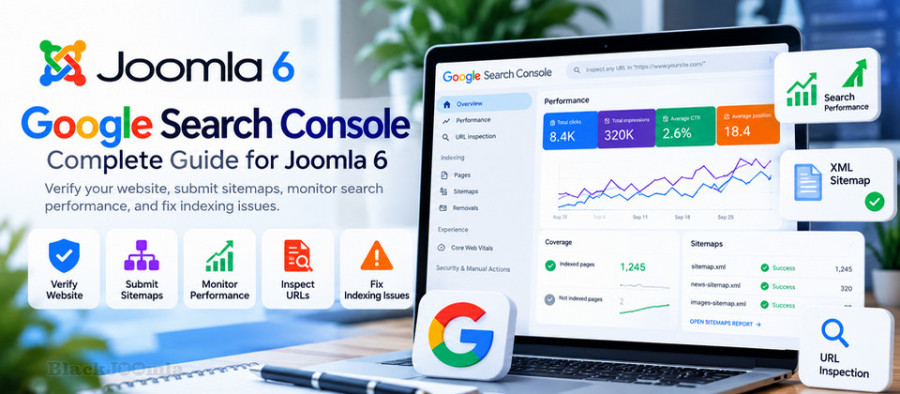
Google Search Console (GSC) is a free service from Google that helps website owners monitor and troubleshoot their websites' presence in Google Search.
It provides information about search performance, indexing, sitemaps, page experience, and certain technical issues that may affect how Google processes your website.
For a Joomla 6 website, Google Search Console can help you:
- Monitor organic search clicks and impressions.
- Discover the search queries that bring visitors to your website.
- Identify pages that Google has indexed or excluded.
- Submit an XML sitemap.
- Inspect individual URLs.
- Investigate indexing and crawling problems.
- Monitor changes in search performance over time.
- Identify certain security problems reported by Google.
Google Search Console does not directly change your Joomla configuration. Instead, it provides information that helps you determine which SEO improvements your website needs.
Why Joomla 6 Website Owners Need Google Search Console
Publishing content does not automatically mean that a page will be indexed or receive organic traffic.
Without search performance data, it can be difficult to determine whether a new article is being discovered, whether its search visibility is improving, or whether a technical problem is preventing Google from indexing it.
Google Search Console helps answer questions such as:
- Is Google discovering my new Joomla articles?
- Which pages receive the most search impressions?
- Which search queries generate clicks?
- Are important pages excluded from indexing?
- Does Google report a problem with my sitemap?
- Are search impressions increasing after publishing new content?
- Which pages have high impressions but relatively few clicks?
These insights can help you prioritize SEO work based on evidence rather than assumptions.
Step 1: Open Google Search Console
Visit the official Google Search Console website:
Sign in with the Google account you want to use to manage your website's search performance data.
If you already have a Search Console property for your domain, check whether you can access it before creating another property.
Step 2: Add Your Joomla 6 Website
Google Search Console provides two main property types: Domain and URL-prefix.
Domain Property
A Domain property covers the domain and its subdomains and protocols, including HTTP and HTTPS.
For example, a Domain property for:
example.com
can include URLs such as:
https://example.com/
https://www.example.com/
http://example.com/
https://shop.example.com/
The exact coverage depends on the domain entered and its subdomains.
Domain properties require DNS verification.
URL-Prefix Property
A URL-prefix property covers URLs that begin with the specified prefix.
For example:
https://example.com/
This property does not automatically include the HTTP version, a different hostname, or another protocol that falls outside the specified prefix.
URL-prefix properties support several verification methods, depending on your website and available configuration.
Which Property Should You Choose?
For most website owners who control their domain's DNS, a Domain property is a good choice because it provides a broader view of the domain.
If you cannot modify DNS records, a URL-prefix property may be more convenient.
Step 3: Verify Domain Ownership
Google must verify that you control the website before granting access to its Search Console data.
DNS Verification for a Domain Property
When you add a Domain property, Google provides a DNS record containing a verification value.
The general process is:
- Add your domain to Google Search Console.
- Copy the DNS verification record supplied by Google.
- Open the DNS management interface for your domain.
- Add the record exactly as instructed.
- Save the DNS changes.
- Return to Google Search Console and select Verify.
DNS management may be available through your domain registrar, hosting provider, or a DNS service such as Cloudflare.
The exact interface depends on your provider.
DNS changes can take time to propagate. If verification fails immediately, check that the record was entered correctly and allow time for the change to become visible.
Step 4: Verify a URL-Prefix Property
If you choose a URL-prefix property, Google may offer several verification methods.
Depending on your setup, these may include:
- HTML file upload.
- HTML meta tag.
- DNS verification.
- Google Analytics.
- Google Tag Manager.
Not every method is available in every situation. Follow the instructions displayed in your Search Console account.
HTML Meta Tag Verification
Google may provide a verification meta tag that must appear in the HTML head section of your homepage.
For example, the structure may resemble:
<meta name="google-site-verification" content="YOUR_VERIFICATION_VALUE">
Use the exact tag supplied by Google. Do not copy the example value above because it is only illustrative.
In Joomla 6, the method used to add the tag depends on your template, configuration, or a suitable extension. Make sure the tag appears in the rendered HTML source of the correct homepage.
After adding the tag, return to Search Console and complete verification.
Important: Keep Verification in Place
Do not remove the verification method after the property has been verified unless you have confirmed that another valid verification method remains active.
For example, if you verified ownership through a meta tag and later remove that tag from your template, Google may eventually be unable to confirm ownership through that method.
Keep your verification configuration documented so that future template changes do not accidentally remove it.
Step 5: Check Your Website's Indexing Status
After verification, open the indexing reports in Google Search Console.
Depending on the report and available data, you can investigate:
- Pages that are indexed.
- Pages that are not indexed.
- Reasons certain pages were excluded.
- Pages affected by crawling problems.
- Changes in indexing status over time.
Do not assume that every excluded URL represents an SEO error. Some URLs should not be indexed, while others may require investigation.
Step 6: Submit Your Joomla XML Sitemap
An XML sitemap helps Google discover URLs that you want it to consider for crawling.
If your Joomla 6 website already generates an XML sitemap through an extension or another supported method, locate the sitemap URL.
A sitemap may use a URL such as:
https://example.com/sitemap.xml
However, this is only an example. Your actual sitemap URL depends on your sitemap generator and configuration.
How to Submit the Sitemap
- Open Google Search Console.
- Select the correct website property.
- Open the Sitemaps report.
- Enter the sitemap path or URL requested by the interface.
- Submit the sitemap.
- Review the reported status and any errors.
Make sure the sitemap uses your preferred HTTPS hostname and contains the correct URLs.
Submitting a sitemap does not guarantee that Google will crawl or index every listed page.
For a detailed guide, read:
How to Create an XML Sitemap in Joomla: Complete Guide
Step 7: Use the URL Inspection Tool
The URL Inspection tool helps you investigate an individual URL in your Google Search Console property.
Enter the full URL of a Joomla article or page into the inspection field.
Depending on the available data, the report can help you understand:
- Whether Google has a known indexed version of the URL.
- Whether the URL is eligible for indexing.
- When Google last crawled the page, if that information is available.
- Which canonical URL Google selected.
- Whether Google reports certain indexing or crawling issues.
The live URL test can also help check the page as Google can access it at the time of testing.
Request Indexing for a New Joomla Article
If you publish a new article and want Google to process it, you can inspect the URL and use Request Indexing when that option is available.
This is useful after:
- Publishing an important new article.
- Correcting a significant technical problem.
- Updating a page with substantial new content.
- Fixing an accidental indexing restriction.
Requesting indexing does not guarantee that Google will index the page, and repeated requests do not guarantee faster processing.
For more information, read:
How to Get Joomla Pages Indexed by Google: Complete Guide
Step 8: Understand the Performance Report
The Performance report is one of the most valuable parts of Google Search Console for SEO analysis.
It provides data about how your website performs in Google Search.
Important metrics include clicks, impressions, click-through rate, and average position.
Clicks
Clicks represent the number of clicks from Google Search results to your website within the selected report scope.
Clicks are useful for understanding how much traffic Google Search is sending to your pages.
Impressions
Impressions indicate how often your website's results appeared in Google Search according to the report's measurement rules.
A page may receive many impressions but relatively few clicks.
This can indicate an opportunity to review its search intent, title, description, ranking positions, and competing results.
Click-Through Rate (CTR)
CTR is the proportion of impressions that resulted in clicks.
It is calculated as:
CTR = Clicks ÷ Impressions × 100
For example, if a page receives 100 clicks from 2,000 impressions, its CTR is 5%.
CTR should be interpreted in context. Search position, query type, device, brand recognition, and the appearance of the search results can all influence it.
Average Position
Average position summarizes the position of your site's top result under Google's reporting methodology for the selected data.
It is not a fixed ranking that every visitor sees. Rankings can vary by query, device, location, and time.
Use average position to examine trends rather than treating it as an exact universal ranking.
Step 9: Find the Search Queries That Bring Visitors
The Queries table in the Performance report can reveal the search terms associated with your website's impressions and clicks.
For example, a Joomla extension website might receive impressions for queries related to:
- Joomla SEO extensions.
- Joomla 6 security.
- Joomla sitemap generation.
- Joomla website speed.
- Joomla indexing problems.
These examples are illustrative. Your actual queries must be taken from your own Search Console data.
Use query data to understand what people are searching for and whether your existing content addresses their needs.
Step 10: Identify Pages With High Impressions but Few Clicks
A page with substantial impressions and a low CTR may be worth reviewing.
However, low CTR alone does not prove that the page has a problem.
Before changing the page, examine:
- The queries generating impressions.
- The average position for those queries.
- The relevance of the page to the search intent.
- The title displayed in search results.
- The description and snippet Google chooses.
- Whether the page competes with another page on your website.
Only make changes when you have a reasonable hypothesis about what needs improvement.
Step 11: Compare SEO Performance Over Time
Search Console lets you compare performance across date ranges.
This is particularly useful when you publish new Joomla articles regularly.
For example, you can compare a recent period with the previous equivalent period and investigate changes in:
- Total clicks.
- Total impressions.
- CTR.
- Average position.
- Performance of individual pages.
- Performance of individual queries.
Use comparable date ranges where possible. Remember that recent data may still be incomplete, and normal fluctuations do not necessarily indicate a technical problem.
Step 12: Monitor Your New Joomla Articles
After publishing a new article, you can use Search Console to evaluate whether it is gaining search visibility.
A practical workflow is:
- Publish the article.
- Make sure it can be reached through normal website navigation or internal links.
- Check that the page returns an appropriate HTTP status.
- Verify that the page is not accidentally blocked from indexing.
- Include the URL in your sitemap when appropriate.
- Inspect the URL in Search Console if needed.
- Review indexing status.
- Monitor impressions and clicks over subsequent weeks.
Do not judge an article's SEO performance solely from the first few days after publication. Some pages need more time to be discovered and develop meaningful search visibility.
Step 13: Investigate Pages That Are Not Indexed
If a Joomla page does not appear in Google's index, use Search Console to investigate the reason before making changes.
Possible issues include:
- The page has not yet been discovered.
- The page has not yet been crawled.
- The page returns an error.
- The page contains a noindex directive.
- The URL is blocked from crawling.
- Google selected a different canonical URL.
- The page is a duplicate or substantially similar to another page.
- The page does not provide sufficient value for Google's indexing systems.
These issues require different solutions. Do not assume that submitting the sitemap again will solve every indexing problem.
For related troubleshooting, read:
How to Configure Robots.txt in Joomla: Complete SEO Guide
How to Fix Duplicate Content in Joomla: Canonical URLs & SEO
Step 14: Check Canonical URLs
Canonicalization is important when multiple URLs can display the same or substantially similar content.
For example, different URL variations may arise from protocols, hostnames, menu routing, or parameters.
Search Console's URL Inspection report can help you compare the user-declared canonical URL with the canonical URL Google selected, when that information is available.
If Google selects a different canonical, investigate the reasons instead of changing the canonical tag blindly.
Check that your internal links, sitemap, redirects, and canonical declarations consistently identify the preferred URL.
Step 15: Check the HTTPS Version of Your Joomla Website
Your website should use a consistent HTTPS configuration.
Check that:
- The preferred website version loads over HTTPS.
- HTTP URLs redirect appropriately when required.
- Internal links use the preferred protocol.
- Canonical URLs use the intended hostname and protocol.
- Your sitemap contains the correct URLs.
If you use a Domain property, Search Console can cover the different protocols associated with that domain. With a URL-prefix property, make sure you select the intended prefix.
Step 16: Review Security Issues and Manual Actions
Google Search Console includes reports for certain security issues and manual actions.
If Google identifies a security problem, the Security Issues report may provide information about the affected pages or problem type.
The Manual Actions report can indicate whether Google has applied a manual action to your website.
Not every hacked website will immediately display a warning in Search Console. Therefore, the absence of a warning does not prove that the website is secure.
If your Joomla website is compromised, investigate the files, database, administrator accounts, extensions, hosting credentials, and server logs as appropriate.
For more information, read:
How to Secure a Joomla 6 Website: Complete Security Hardening Guide
Step 17: Understand the Relationship Between Search Console and Analytics
Google Search Console and Google Analytics provide different types of information.
Search Console focuses on your website's performance in Google Search, while Google Analytics can provide information about what users do after arriving on your website, depending on your analytics configuration.
For example:
- Search Console can show which queries generated clicks.
- Analytics can help measure visits and on-site interactions.
- Search Console can report search impressions.
- Analytics can help evaluate engagement and conversions.
Using both tools can provide a more complete picture of organic search performance, but their metrics should not be expected to match exactly because they use different measurement methods.
Common Google Search Console Mistakes
Creating Duplicate Properties Without a Clear Reason
Multiple properties can be useful for different reporting needs, but make sure you understand which property you are viewing and what URLs it covers.
Submitting the Wrong Sitemap
Verify that the sitemap URL is correct, accessible, and contains the URLs you intend Google to discover.
Assuming Sitemap Submission Guarantees Indexing
A sitemap helps discovery but does not guarantee that Google will index every URL.
Requesting Indexing Repeatedly
Repeated requests do not guarantee faster indexing. Correct the underlying problem and allow Google time to process the page.
Blocking Important Pages Accidentally
Review robots.txt and robots meta directives before concluding that Google is ignoring your content.
Making Changes Based on Too Little Data
Small data samples and short date ranges can be misleading. Evaluate trends over an appropriate period.
Confusing Search Console Clicks With Joomla Hits
Joomla's internal Hits counter and Google Search Console clicks are different metrics. A Joomla article may accumulate Hits from various sources, while Search Console reports clicks from Google Search within its reporting scope.
Do not use these numbers interchangeably.
Google Search Console Workflow for Joomla 6
Use the following routine to keep track of your website's organic search performance.
After Publishing an Important Article
- Check the page URL.
- Confirm the page is accessible.
- Check for accidental noindex directives.
- Make sure internal links can lead to the page.
- Confirm the sitemap includes the page when appropriate.
- Use URL Inspection if you need to investigate discovery or indexing.
Every Week
- Review clicks and impressions.
- Identify pages with notable performance changes.
- Check queries generating search visibility.
- Investigate important indexing problems.
- Record results for comparison with the previous period.
Every Month
- Compare longer-term performance.
- Identify content that is gaining or losing visibility.
- Review pages with high impressions and low CTR.
- Investigate persistent indexing problems.
- Update important content where there is a clear reason.
- Review security and manual action reports.
Google Search Console Checklist for Joomla 6
- Add and verify the correct Search Console property.
- Keep the verification method active.
- Submit the correct XML sitemap.
- Review indexing reports.
- Use URL Inspection for important pages.
- Monitor clicks, impressions, CTR, and average position.
- Review the queries that generate search visibility.
- Investigate important indexing exclusions.
- Check canonical URL consistency.
- Verify the preferred HTTPS configuration.
- Review security issues and manual actions.
- Compare performance over meaningful date ranges.
- Keep a record of weekly SEO metrics.
Frequently Asked Questions
Is Google Search Console free?
Yes. Google Search Console is a free service for monitoring and troubleshooting a website's presence in Google Search.
Does Joomla 6 require a Google Search Console extension?
No. You can use Google Search Console without installing a dedicated Joomla extension. You need to verify website ownership and configure any sitemap or verification requirements that apply to your setup.
Does submitting a sitemap guarantee indexing?
No. A sitemap helps Google discover URLs, but Google decides which pages to crawl and index.
How long does Google take to index a new Joomla article?
There is no guaranteed timeframe. Processing can take different amounts of time depending on the page and Google's systems. Requesting indexing does not guarantee immediate inclusion.
Can Google Search Console tell me why a page is not indexed?
It can provide useful information about known indexing and crawling issues, although it may not identify every underlying cause.
Can Google Search Console detect a hacked Joomla website?
It can report certain security issues and manual actions, but it is not a complete malware scanner. You should also monitor the Joomla installation, hosting account, database, files, and server logs.
Why are Joomla Hits different from Search Console clicks?
They measure different things. Joomla Hits are an internal content metric, while Search Console clicks measure clicks from Google Search according to Google's reporting methodology.
Final Thoughts
Google Search Console gives Joomla 6 website owners valuable information about organic search visibility, indexing, search queries, and technical problems.
Start by verifying your website, submitting a valid XML sitemap, and learning how to use URL Inspection. Then review the Performance report regularly to understand which pages and queries are generating clicks and impressions.
For the best results, combine Search Console data with a clear content strategy, useful internal links, accurate metadata, consistent canonical URLs, and ongoing technical maintenance.
Most importantly, make SEO decisions based on meaningful data over time rather than judging your Joomla website by a single metric or a few days of activity.