What Are Joomla Extensions?
Joomla extensions are software packages that add functionality to a Joomla website. They are developed by the Joomla community and third-party developers and can be free, commercial, or subscription-based.
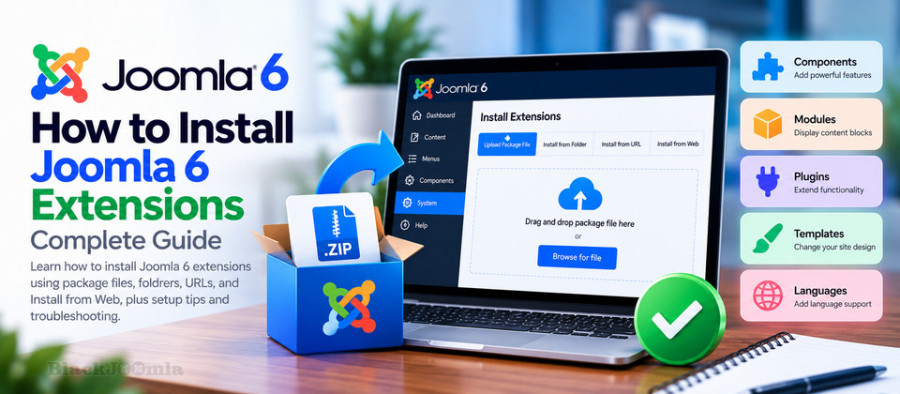
Joomla extensions are available in several types:
- Components: Add major functionality to a website and usually provide their own administration interface. Examples include eCommerce systems, membership platforms, and form builders.
- Modules: Display smaller blocks of content in predefined template positions, such as menus, login forms, and search boxes.
- Plugins: Extend Joomla or other extensions by responding to specific system events.
- Templates: Control the visual appearance, layout, and design of a Joomla website.
- Languages: Add language support to the Joomla administrator or website frontend.
- Packages: Install multiple related extensions together, such as a component, module, and plugins.
- Libraries: Provide reusable functionality for other extensions.
Before installing an extension, make sure you understand its type and requirements. Some extensions need additional modules or plugins to provide their complete functionality.
Before Installing a Joomla 6 Extension
Installing an extension is usually straightforward, but a few checks can prevent compatibility problems, installation errors, and security issues.
1. Check Joomla 6 Compatibility
Always check whether the extension explicitly supports your Joomla version. An extension that works with Joomla 4 or Joomla 5 is not automatically compatible with Joomla 6.
Review the developer's documentation, release notes, and compatibility information before downloading the installation package.
2. Check Server Requirements
Some extensions require specific PHP versions, PHP modules, database features, or additional server configuration. Make sure your hosting environment meets the requirements published by the extension developer.
3. Download from a Trusted Source
Download extensions from the developer's official website or the Joomla Extensions Directory (JED). Avoid unofficial repackaged downloads because they may contain modified or malicious files.
4. Create a Website Backup
Before installing a major extension or making significant changes, create a backup of your Joomla files and database. This gives you a recovery point if the installation causes problems.
See our guide on how to back up a Joomla 6 website for detailed instructions.
How to Access the Joomla 6 Extension Installer
All standard extension installation methods are available through the Joomla administrator interface.
- Log in to your Joomla 6 administrator dashboard.
- Open the System section.
- Find the Install panel.
- Select Extensions.
The installer provides different methods depending on the installer plugins available and enabled on your website. The most common option is Upload Package File.
Method 1: Install Joomla 6 Extensions Using Upload Package File
Uploading an installation package is the easiest and most common way to install Joomla extensions. This method is suitable for most components, modules, plugins, templates, and packages distributed as ready-to-install ZIP files.
Step 1: Download the Extension
Visit the extension developer's website and download the installation package for Joomla 6.
Make sure you select the actual installation archive. Some developers provide a larger download containing documentation, multiple extension packages, and additional files. In that case, read the installation instructions and identify the correct ZIP package.
Step 2: Open the Extension Installer
Navigate to System → Install → Extensions in the Joomla administrator dashboard.
Step 3: Upload the Package
Select the Upload Package File tab. Drag and drop the downloaded ZIP file into the upload area or use the file browser to select it from your computer.
Joomla will upload and install the package automatically.
Step 4: Check the Installation Result
After the process finishes, Joomla displays a success or failure message. Read any additional installation instructions provided by the extension.
If the installation is successful, the extension files should be registered in Joomla. However, some extensions require additional configuration or activation before they become available on your website.
Method 2: Install Joomla 6 Extensions from a Folder
The Install from Folder method is useful when an extension package is too large to upload through the browser or when your hosting provider imposes a restrictive upload size limit.
Instead of uploading the compressed package through Joomla, you extract it and transfer the files to your server first.
Step 1: Extract the Extension Package
Download the extension ZIP file and extract it on your computer. Make sure you preserve the original directory structure.
Step 2: Upload the Extracted Files
Use an FTP or SFTP client or your hosting File Manager to upload the extracted extension files to a temporary directory on your Joomla server.
For example, you can create a directory such as:
/tmp/my-extension/
The directory must contain the actual installation files and the extension's XML manifest.
Step 3: Select Install from Folder
Return to System → Install → Extensions and open the Install from Folder tab.
Step 4: Enter the Installation Directory
Enter the full server filesystem path to the extracted extension package. For example:
/home/username/public_html/tmp/my-extension
The path depends on your hosting configuration. Use the actual filesystem path provided by your hosting environment, not a website URL or a local computer path.
Step 5: Install the Extension
Select Check and Install. Joomla will inspect the directory and install the extension if the package structure and manifest are valid.
After installation, remove the temporary files you uploaded if they are no longer needed.
Method 3: Install Joomla 6 Extensions from a URL
Joomla also allows you to install an extension directly from a downloadable package URL. This method avoids downloading the ZIP file to your computer and uploading it again.
Step 1: Obtain the Direct Download URL
Get the direct HTTPS download link to the extension's installation archive from a trusted developer website.
The URL must point to the actual installation package, not a product page, login page, or general website address.
Step 2: Open Install from URL
Navigate to System → Install → Extensions and select the Install from URL tab.
Step 3: Enter the Package URL
Paste the direct download URL into the relevant field and select Check and Install.
Joomla will attempt to retrieve the package from the remote server and install it.
Security note: Use this method only with trusted HTTPS download sources. If the download requires authentication or a browser session, use the Upload Package File method instead. Avoid disabling certificate verification to bypass HTTPS errors.
Method 4: Install Extensions Using Install from Web
The Install from Web feature allows you to browse extensions from the Joomla Extensions Directory directly through the administrator interface.
This method can make it easier to discover extensions without manually downloading their installation packages.
Step 1: Enable Install from Web
Open System → Install → Extensions and look for the Install from Web tab.
If the tab is not available, check whether the Installer - Install from Web plugin is installed and enabled. You can manage installer plugins through the Joomla plugin manager.
Step 2: Browse the Joomla Extensions Directory
Open the Install from Web tab and browse the available categories or search for an extension by name.
Step 3: Review the Extension Details
Before installation, review the extension description, developer information, requirements, and Joomla compatibility details.
Step 4: Install the Extension
Follow the available installation action. Depending on the extension and its listing, Joomla may offer direct installation or redirect you to the developer's website to download the package.
For more information, see the official Install from Web documentation.
Method 5: Install Extensions Using Discover
The Discover feature is a specialized installation method for extensions whose files have already been uploaded to the appropriate Joomla directories but have not been registered through the normal installation process.
It can be useful when normal package installation is not possible, for example, because of server upload limitations. However, it is not a general replacement for the standard installer.
Step 1: Upload the Extension Files
Extract the extension package and upload its files to the correct Joomla directories using FTP or SFTP. The required destination depends on the extension type and its package structure.
Step 2: Open Discover
Navigate to System → Install → Discover in the Joomla administrator interface.
Step 3: Search for Extensions
Select the Discover button in the toolbar. Joomla will scan the relevant directories and list supported extensions that it can identify but that have not yet been installed.
Step 4: Install the Discovered Extension
Select the extension from the list and click Install.
Joomla will register the discovered extension. Make sure you follow the developer's instructions for file placement and installation requirements.
How to Enable and Configure an Installed Extension
Installing an extension does not always make it immediately available on your website. Depending on its type, you may need to enable it, configure its settings, or create a menu item.
Enable a Joomla Plugin
- Open System → Manage → Plugins.
- Search for the installed plugin.
- Check its status.
- If it is disabled, open it and change its status to Enabled.
- Save your changes.
Publish a Joomla Module
- Open Content → Site Modules or the relevant module management screen.
- Find the newly installed module.
- Open its configuration page.
- Select an appropriate template position.
- Choose the menu items where the module should appear.
- Set its status to Published and save.
Configure a Joomla Component
Components usually provide their own administration interface. Open the Components menu and select the installed component if it appears there.
Some components also require you to create a menu item before their frontend functionality becomes accessible to visitors.
Configure a Joomla Template
After installing a template, open the template styles management screen and select the desired style. You may need to assign it as the default template or apply it to specific menu items.
Common Joomla 6 Extension Installation Errors and Solutions
Although Joomla's extension installer is generally straightforward, installation can fail because of server limitations, package problems, file permissions, or compatibility issues.
1. Unable to Find an Installable Package
This error can occur when you upload the wrong ZIP file or a download archive that contains several separate files rather than a ready-to-install Joomla package.
Solution: Extract the downloaded archive if necessary, read the developer's instructions, and select the correct installation package.
2. The Extension Package Is Too Large
Your hosting provider may impose a maximum upload size that prevents Joomla from receiving the installation package.
Solution: Check your PHP and hosting upload limits. If the package is still too large, use Install from Folder or another method supported by the extension developer.
3. Installation Fails Because of File Permissions
Joomla may be unable to write files to the required directories because of incorrect ownership or filesystem permissions.
Solution: Review the directory permissions and ownership with your hosting provider. Avoid setting broad permissions such as 777 as a workaround.
4. The Extension Is Not Compatible with Joomla 6
An extension developed for an older Joomla version may use outdated APIs or dependencies that are no longer supported.
Solution: Download a Joomla 6-compatible release or contact the developer. Do not assume that enabling a backward compatibility plugin makes every older extension compatible.
5. The Extension Installs but Does Not Work
Some modules and plugins must be enabled after installation. Other extensions require additional configuration, dependencies, permissions, or menu assignments.
Solution: Check the extension status, configuration, dependencies, and developer documentation.
6. The Website Displays a Blank Page or HTTP 500 Error
A faulty extension or an incompatibility with the server environment may cause a fatal error after installation.
Solution: Check the PHP and Joomla error logs, identify the affected extension, and disable or uninstall it if necessary. If the website becomes inaccessible, use your hosting tools or a backup to recover it.
For additional troubleshooting, read our guide on fixing Joomla 6 errors.
How to Update or Uninstall Joomla 6 Extensions
Updating Extensions
Extension developers regularly release updates to fix bugs, improve performance, address security vulnerabilities, and maintain compatibility with newer Joomla versions.
To check for available updates:
- Open the Joomla administrator dashboard.
- Navigate to System → Update → Extensions.
- Check for available updates.
- Review the extension version and update information.
- Create a backup before installing significant updates.
- Select the extensions you want to update and follow the installation process.
Some commercial extensions require a valid download key or subscription to access updates. Follow the developer's instructions when configuring update access.
Uninstalling Extensions
If you no longer need an extension, you can remove it through the Joomla extension management interface.
- Open System → Manage → Extensions.
- Search for the extension you want to remove.
- Select the relevant extension entry.
- Choose Uninstall from the toolbar.
- Confirm the operation and check the result.
Some extensions consist of several related components, modules, or plugins. Review the developer's uninstall instructions and remove related parts when appropriate.
Best Practices for Managing Joomla 6 Extensions
- Install extensions only when they provide functionality your website actually needs.
- Download packages from official and trusted sources.
- Check Joomla 6 compatibility before installation.
- Read the developer's documentation and installation instructions.
- Create a complete backup before installing major extensions or updates.
- Keep extensions updated to supported releases.
- Remove extensions that are no longer needed.
- Test new extensions on a staging website before using them on a production site.
- Review extension permissions and access requirements.
- Monitor your website after installing or updating extensions.
Frequently Asked Questions
How Do I Install an Extension in Joomla 6?
Log in to the Joomla administrator dashboard, open System → Install → Extensions, and select an installation method. For most extensions, upload the ready-to-install ZIP package using the Upload Package File tab.
Can I Install Joomla 5 Extensions on Joomla 6?
Only if the extension developer confirms compatibility with Joomla 6. Compatibility with Joomla 5 does not automatically guarantee that an extension will work correctly on Joomla 6.
Why Is the Install from Web Tab Missing?
The Install from Web feature depends on the Installer - Install from Web plugin. Check whether the plugin is installed and enabled in the Joomla administrator interface.
Do I Need to Extract a Joomla Extension ZIP File Before Installing It?
Usually not. If the developer provides a ready-to-install ZIP package, upload it directly. Extract the archive only when the download contains multiple packages or when you are using the Install from Folder method.
How Can I Install a Large Joomla Extension?
If the package exceeds your server's upload limit, use Install from Folder after uploading the extracted files to the server. You can also ask your hosting provider whether the relevant upload limits can be increased.
Does Installing a Joomla Extension Automatically Enable It?
Not always. Plugins and modules may need to be enabled or published, while components and templates may require additional configuration or menu assignments.
Is It Safe to Install Extensions from Third-Party Websites?
It is safer to download extensions from the developer's official website or the Joomla Extensions Directory. Avoid unknown download sources and unofficial repackaged installation files.
Conclusion
Installing extensions is one of the main ways to expand the functionality of a Joomla 6 website. Joomla provides several installation methods, allowing administrators to upload packages, install from server folders, use direct download URLs, or browse extensions through Install from Web.
For most users, Upload Package File is the simplest option. Other methods are useful when dealing with large packages or specific hosting configurations. Regardless of the method you choose, always verify Joomla 6 compatibility, download extensions from trusted sources, and create a backup before making significant changes.
By following these practices, you can install, configure, and maintain Joomla 6 extensions more safely and efficiently.