1. Start with These Checks Before Troubleshooting
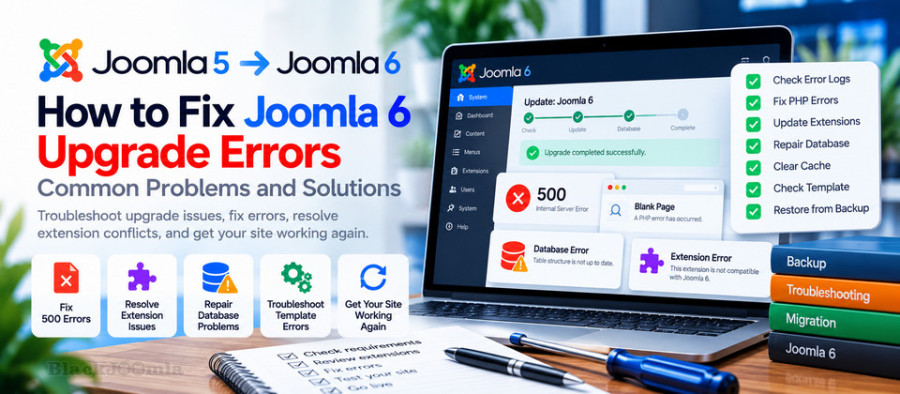
When a Joomla 6 upgrade fails, avoid making several changes at once. A structured diagnosis helps you identify the cause without creating additional problems.
Start with these checks:
- Confirm the installed Joomla version and whether the update completed successfully.
- Check the PHP and database versions used by your hosting account.
- Review recently updated or installed extensions and templates.
- Check whether the administrator area, frontend, or both are affected.
- Review the PHP error log and Joomla debug output when available.
- Confirm that you have a working backup of both the website files and database.
If the website is publicly accessible but some features are broken, avoid repeatedly running the upgrade process. First determine whether the problem is caused by an extension, an incomplete database update, or the hosting environment.
For a complete preparation checklist, see our guide to upgrading from Joomla 5 to Joomla 6.
2. Fix the Joomla 6 White Screen
A blank or white screen often indicates a PHP fatal error. The browser may show no useful explanation because error messages are not displayed publicly on the website.
Step 1: Check the PHP error log
Open your hosting control panel, such as cPanel or DirectAdmin, and locate the PHP error log or the website's error logs. The exact location depends on your hosting provider.
Look for errors recorded at the time the website stopped working. Pay particular attention to messages mentioning an extension or template file, an undefined class or method, a missing PHP function, a memory limit error, or a fatal error involving incompatible code.
Step 2: Identify recently changed extensions
If the error began immediately after the Joomla 6 upgrade, review extensions and templates that were recently updated or that have not been confirmed compatible with Joomla 6.
If the administrator dashboard is available, disable the suspected extension through Joomla's extension management interface. If the dashboard is inaccessible, use the database or another recovery method only after taking a backup and identifying the exact extension record.
Do not randomly disable database entries. Joomla extensions can have multiple related records, and changing the wrong record may create additional problems.
Step 3: Test the template
A template or template framework that relies on incompatible code can cause frontend errors even when the administrator area works.
If you can access the administrator dashboard, temporarily switch to a compatible Joomla core template to determine whether the custom template is responsible. Test this on a staging copy whenever possible.
If the blank page continues, investigate PHP errors, plugins, and the database rather than assuming the template is the only cause.
3. Troubleshoot HTTP 500 Errors After Upgrading
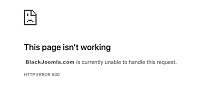
An HTTP 500 Internal Server Error indicates that the server encountered an unexpected condition. It does not identify the underlying cause by itself.
Possible causes include:
- Incompatible PHP code in an extension or template
- Incorrect server configuration
- Invalid directives in the
.htaccessfile - PHP memory exhaustion
- File permission problems
- An incomplete update or another server-side failure
How to investigate the error
1. Read the server error log. Check the log for the exact time of the failure. Use the message to narrow down the affected file or component.
2. Check .htaccess changes. If the error appeared after changing rewrite rules or restoring an older configuration file, test a known-good configuration on a staging site. Do not overwrite the file without preserving the existing version.
3. Check PHP compatibility. Consult the current Joomla technical requirements and verify the PHP version actually assigned to your website.
4. Check resource limits. Review PHP memory and execution limits if the logs indicate that a process ran out of resources. Increasing a limit will not fix incompatible code, so use the error message to guide your decision.
For a broader explanation of server-side failures, see our guide to fixing a 500 Internal Server Error. Verify the URL if your published article uses a different alias.
4. Resolve Incompatible Extensions
Third-party extensions are a major area to investigate when a website develops problems after a major Joomla upgrade. An extension may install successfully but still fail when a particular page, module, administrator screen, or background task uses its code.
Check compatibility before changing anything
- Check the developer's official website for a Joomla 6-compatible release.
- Review the extension's supported Joomla versions and required PHP version.
- Update the extension if the developer provides a compatible release.
- Test its important functions on a staging copy.
- If no compatible release exists, contact the developer or find a suitable alternative.
Avoid installing an extension update simply because it is the newest version. Confirm that it supports your Joomla version and that the package comes from a trusted source.
Understand the backward compatibility plugin
Joomla 5 and Joomla 6 use different backward compatibility mechanisms. The standard Joomla 5 Behaviour - Backward Compatibility plugin must be disabled for the documented upgrade to Joomla 6.
However, Joomla 6 also has a separate Behaviour - Backward Compatibility 6 plugin. These are not interchangeable.
If a site fails after the upgrade, do not toggle compatibility plugins at random. Determine which plugin is installed, which version of Joomla is running, and whether the failing extension depends on compatibility code. Follow the official Joomla 5-to-6 upgrade guidance before making changes.
5. Repair Joomla Database Structure Problems
An upgrade can leave database structure warnings that require attention. Joomla includes a database maintenance function that checks the database schema against the structure expected by the installed version.
If you can access the administrator dashboard:
- Open the System dashboard.
- Locate the Maintenance: Database section. The exact layout can vary by Joomla version.
- Review the reported database structure differences.
- Back up the database before applying repairs.
- Use the database update or repair action if Joomla identifies a structure mismatch.
After the repair, check the administrator dashboard, frontend, article editing, menus, and extensions.
What if the administrator area is unavailable?
Do not manually create or delete database tables based on guesswork. Review the PHP and database logs first. If you cannot identify the problem, consult your hosting provider or a Joomla specialist.
Direct database changes should be a controlled recovery step, not the first troubleshooting method.
6. Fix a Failed Upgrade or Missing Update Option
If Joomla 6 does not appear as an available update, or the update process fails to complete, check the following items.
Verify the starting Joomla version
The official upgrade procedure assumes that your site is running Joomla 5.4.x. Update an older Joomla 5 installation to the appropriate supported 5.4 release before attempting the major upgrade.
Check server requirements
Verify the actual PHP and database versions used by your hosting account. Consult the official requirements for the current Joomla release and its supported software versions before proceeding.
Review the update channel
The official Joomla 5-to-6 instructions explain how to select the appropriate update channel in the Joomla Update component. Follow those instructions carefully rather than changing update settings without understanding their effect.
Check available disk space and logs
A failed update may be associated with insufficient disk space, file permissions, interrupted downloads, or server-side restrictions. Review hosting logs and confirm that the account has enough available resources before retrying.
If the update has partially changed the site, do not repeatedly run the same process. First determine whether the installation is complete and whether a tested backup should be restored.
7. Clear the Cache and Check Generated Files
Sometimes the site has been updated successfully, but cached output or generated assets make the frontend appear broken.
If the administrator area is available:
- Open Joomla's cache management tools.
- Clear the relevant Joomla cache.
- Clear any template or extension cache where appropriate.
- Purge your CDN or reverse-proxy cache if your hosting setup uses one.
- Test the website in a private browser window.
If the website uses a third-party optimization extension, temporarily test without its optimization features when the symptoms suggest cached CSS, JavaScript, or HTML.
Do not delete arbitrary directories. Remove only cache data you understand and follow the documentation for the relevant extension or hosting platform.
8. Restore Your Website If the Upgrade Cannot Be Repaired Safely
If the website remains unavailable and the cause cannot be resolved promptly, restoring a known-good backup may be the safest recovery option.
A proper restoration normally requires both:
- The website files, including Joomla core files, extensions, templates, and configuration
- The matching database backup
A files-only restore may leave the database at a different stage of the upgrade. A database-only restore may also be inconsistent with the current website files.
Before restoring:
- Preserve the current files, database, and logs if they may help diagnose the failure.
- Confirm the backup date and whether it predates the failed upgrade.
- Restore files and database from a consistent backup set.
- Test the restored website in a staging environment if possible.
- Correct the compatibility or hosting issue before attempting the upgrade again.
Joomla does not support simply downgrading an upgraded installation. If the upgrade introduced irreversible changes, use a backup created immediately before the upgrade rather than trying to reverse database changes manually.
For a safer future update process, see our guide to securing a Joomla website and maintain tested off-site backups.
9. Enable Debugging to Find the Root Cause
When the website still works partially, Joomla's debugging tools may help reveal which component is generating an error.
If you can access Global Configuration, enable Debug System in a controlled troubleshooting environment. Reproduce the error and inspect the resulting diagnostic information.
Keep these precautions in mind:
- Prefer a staging copy over a live production site.
- Do not leave detailed debugging enabled on a public website.
- Do not expose database credentials, session data, tokens, or other sensitive information when sharing logs.
- Disable debugging when the investigation is complete.
If the administrator dashboard is inaccessible, use the server's PHP error log first. Do not edit configuration files blindly or expose detailed errors to ordinary visitors.
10. Prevent Joomla 6 Upgrade Problems in the Future
A repeatable update process reduces the risk of downtime.
- Verify Joomla's current technical requirements.
- Update to the recommended starting Joomla release.
- Check every third-party extension and template for compatibility.
- Test the update on a staging copy.
- Create a full files-and-database backup.
- Verify that the backup can actually be restored.
- Record the existing PHP version and hosting configuration.
- Check the website's important functions after updating.
- Monitor error logs and test the frontend and administrator area.
- Keep a recovery plan available.
After the upgrade, test login, article editing, menus, forms, search, checkout or payment flows if applicable, multilingual pages, SEO URLs, redirects, and sitemap generation.
Also review whether important pages remain accessible to search engines. If URLs or routing behavior have changed, review your Joomla SEF URL configuration and investigate any newly appearing 404 errors.
Frequently Asked Questions
Why does my Joomla 6 website show a blank page after upgrading?
A blank page commonly indicates a PHP fatal error. Check the PHP error log, identify the affected extension or template, and test a compatible replacement or update on a staging copy.
Can an incompatible extension prevent me from accessing the administrator dashboard?
Yes. An extension can cause a fatal error in either the frontend or administrator area. If the dashboard is unavailable, use the error log to identify the component and follow a controlled recovery procedure.
Should I restore a backup or try to repair the installation?
If you can identify and safely resolve the cause, a repair may be appropriate. If the website is seriously broken and the cause is unclear, restoring a verified pre-upgrade backup may be safer. Preserve the current files, database, and logs before recovery.
Does clearing the cache fix Joomla 6 upgrade errors?
It can resolve symptoms caused by stale cached output, but it will not repair incompatible PHP code, missing files, or database structure problems. Diagnose the underlying cause before relying on cache clearing.
What PHP version does Joomla 6 require?
Check the official technical requirements for your exact Joomla release, including supported PHP and database versions, before upgrading.
Conclusion
Joomla 6 upgrade errors are easier to resolve when you diagnose the underlying cause instead of changing several settings at once. Start with error logs, check server requirements, investigate incompatible extensions, and use Joomla's database maintenance tools when appropriate.
Most importantly, maintain a tested backup and use a staging site for major changes. If the website cannot be recovered safely, restore a consistent pre-upgrade backup and correct the original problem before trying again.