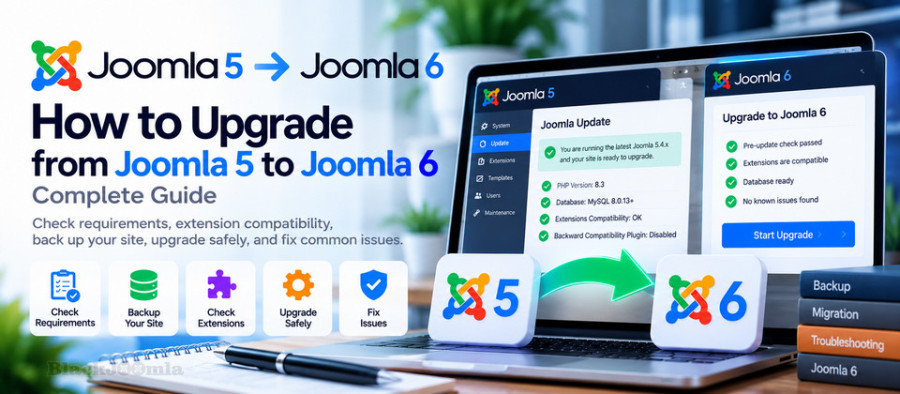
Can You Upgrade Directly from Joomla 5 to Joomla 6?
The recommended starting point for the Joomla 5 to Joomla 6 upgrade is Joomla 5.4.x.
If your website runs an earlier Joomla 5 release, update it to the latest appropriate Joomla 5.4.x release before proceeding. If you are running Joomla 4 or an older major version, follow the appropriate migration path rather than assuming that a direct upgrade to Joomla 6 is supported.
Joomla 5.4 introduced a backward compatibility plugin intended to help prepare websites for Joomla 6. Some extensions work without this compatibility layer, while others may require the Joomla 6 backward compatibility plugin.
However, the presence of a compatibility plugin does not guarantee that every third-party extension will work correctly. Testing remains essential.
Joomla 6 System Requirements
Before upgrading, verify that your hosting environment meets the technical requirements for your target Joomla 6 release.
The official Joomla 5-to-6 upgrade guide lists the following minimum versions for the upgrade path:
- PHP 8.3 or a supported compatible version that meets Joomla 6 requirements.
- MySQL 8.0.13 or later.
- MariaDB 10.6.x or a supported later version.
- PostgreSQL 14.0 or later.
Always check the requirements for the exact Joomla release you intend to install, because requirements can change between releases.
How to Check Your Joomla Hosting Environment
You can review your current environment from the Joomla administrator area.
- Log in to Joomla administrator.
- Open System.
- Select System Information.
- Review the PHP version, database type, database version, and related server details.
- Compare the results with the requirements for your target Joomla 6 release.
If your hosting environment does not meet the requirements, contact your hosting provider before starting the upgrade.
On shared hosting, the PHP version may be configurable through cPanel or DirectAdmin, but database upgrades and other server-level changes may require assistance from the provider.
Step 1: Create a Complete Backup
Before changing the Joomla major version, create a complete backup of your website.
Your backup should include:
- All Joomla website files.
- The Joomla database.
- Uploaded images and documents.
- Template and extension files.
- Configuration files.
- Any additional files required by your website.
Store the backup somewhere separate from the live website whenever possible.
Most importantly, test that the backup can actually be restored. A backup that cannot be restored is not a reliable recovery plan.
For more information, read:
How to Secure a Joomla Website: Complete Security Guide
Step 2: Create a Staging Copy of Your Website
For business websites, online stores, membership websites, and sites that depend on multiple extensions, testing the upgrade on a staging copy is strongly recommended.
A staging environment is a separate copy of your website where you can test changes without immediately affecting visitors.
You can create the staging site on:
- A subdomain.
- A separate directory with suitable access restrictions.
- A development server.
- A local development environment.
Make sure the staging copy does not accidentally expose private data or get indexed by search engines. Restrict access appropriately and prevent unintended indexing.
Test the complete upgrade process on the staging copy before repeating it on your live website.
Step 3: Update Joomla 5 to the Latest Appropriate 5.4.x Release
If your website is running an earlier Joomla 5 version, update it to the latest appropriate Joomla 5.4.x release before attempting the major-version upgrade.
First, check for available Joomla updates and extension updates.
- Open the Joomla administrator area.
- Review the available Joomla core updates.
- Update the Joomla 5 installation as required.
- Update compatible third-party extensions.
- Verify that the website still works correctly.
Do not skip this preparation step. The supported upgrade procedure assumes that you start from Joomla 5.4.x.
Step 4: Check All Extensions for Joomla 6 Compatibility
Extension compatibility is one of the most important parts of a Joomla 5-to-6 upgrade.
Your website may depend on components, modules, plugins, templates, libraries, and custom code. If any critical part is incompatible, the upgrade may cause errors or prevent the website from loading.
Review every installed extension, including extensions that are currently unpublished or used only in the administrator area.
For each extension, check:
- Whether the developer explicitly supports Joomla 6.
- Whether an updated version is available.
- Whether the extension requires the Joomla 6 backward compatibility plugin.
- Whether the installed version has known issues.
- Whether the extension is still maintained.
Use the developer's official documentation as well as the Joomla Extensions Directory. Compatibility indicators are useful, but they are not a substitute for testing the extension on your own website.
Step 5: Test Your Template
Your template controls the appearance and layout of your Joomla website. A template that worked correctly in Joomla 5 may require an update before it can work correctly in Joomla 6.
Check whether the template developer provides a Joomla 6-compatible release.
During testing, review:
- Homepage layout.
- Article pages.
- Category blog pages.
- Navigation menus.
- Module positions.
- Responsive layouts.
- Template overrides.
- Custom CSS and JavaScript.
If your website uses custom template overrides, test them carefully. Changes in Joomla core behavior or extension output can affect overrides even when the template itself appears to be compatible.
Step 6: Understand the Backward Compatibility Plugins
Joomla 5.4 includes a plugin named Behaviour - Backward Compatibility and a separate plugin named Behaviour - Backward Compatibility 6.
These plugins serve different purposes.
The Joomla 5 backward compatibility plugin supports older behavior intended for the Joomla 5 generation. The Joomla 6 compatibility plugin prepares for code that requires compatibility support in Joomla 6.
For the documented Joomla 5.4.x-to-6.x upgrade process, the Joomla 5 Behaviour - Backward Compatibility plugin must be disabled before the upgrade can proceed through Joomla's update mechanism.
Do not confuse it with the Joomla 6 compatibility plugin. Follow the official upgrade instructions and pre-update checks for the exact plugin settings required by your installation.
Before disabling the Joomla 5 compatibility plugin, test the site on a staging copy. An extension that depends on the older compatibility behavior may stop working, and in some cases the administrator area may become inaccessible.
Do not disable unrelated Behaviour plugins. They may provide other Joomla functionality.
Step 7: Run the Joomla Pre-Update Check
Joomla provides a pre-update check to help you review the requirements and extension compatibility information before upgrading to a new major version.
To access the update settings:
- Open System in the Joomla administrator area.
- Navigate to Update and select Joomla.
- Open the Options button.
- Select the update channel specified in the official Joomla upgrade guide for the target major version.
- Save the settings.
- Review the pre-update check and its reports.
The exact options shown can depend on your current Joomla version and update configuration.
Review the following areas:
- Required technical settings.
- Recommended settings.
- Third-party extension compatibility information.
- Backward compatibility plugin requirements.
The pre-update check is a useful screening tool, but it cannot guarantee that every extension will work correctly. Extension compatibility information depends partly on what developers report to Joomla.
Confirm compatibility with the extension developer and test the actual website before proceeding.
Step 8: Enable Debugging on Your Test Site
Enabling Joomla debugging on a staging site can help you identify errors caused by incompatible extensions or custom code.
Open Global Configuration, navigate to the System settings, and enable Debug System on the test site when appropriate.
After the upgrade, review any errors carefully.
Do not enable public-facing debug output on a production website without understanding the security implications. Debug messages may expose technical details that should not be visible to visitors.
Step 9: Update or Remove Incompatible Extensions
Before upgrading Joomla, update extensions that require a newer compatible release.
If an extension is not compatible with Joomla 6, determine whether the developer offers an update or a supported replacement.
For extensions that are no longer required, remove them rather than carrying unnecessary software into the new installation.
Do not assume that an extension will work simply because it installs successfully. Test its actual features, including frontend output and administrator functions.
Step 10: Test the Upgrade Before Changing the Live Website
Once the requirements and extension compatibility checks are complete, perform the upgrade on your staging copy.
After upgrading, test:
- Frontend pages and menus.
- Administrator login.
- Article editing and publishing.
- Category blog layouts.
- Forms and user registration.
- Search functionality.
- Extension-specific features.
- Template overrides.
- SEF URLs and redirects.
- Database maintenance status.
If a problem occurs, record the error message and identify the extension or code responsible before attempting further changes.
Step 11: Upgrade Joomla 5.4.x to Joomla 6.x
After completing the preparation and testing steps, you can proceed with the upgrade.
Before starting, confirm that:
- The website is running Joomla 5.4.x.
- The hosting environment meets the requirements.
- A complete and tested backup exists.
- Critical extensions and the template are compatible.
- The required compatibility plugin settings are correct.
- The staging upgrade has been tested successfully.
Then use the Joomla Update component and follow the upgrade procedure provided by the official Joomla documentation for your target release.
Do not interrupt the update process or close the browser simply because the operation appears to be taking longer than expected. If the update appears to have failed, check the server and Joomla logs before attempting the upgrade again.
Step 12: Check the Database Structure After the Upgrade
After the upgrade, review Joomla's database maintenance status.
If Joomla reports database structure problems, open the database maintenance interface from the System Dashboard and review the reported issues.
Use the available database repair or update-structure operation when Joomla identifies a legitimate structure update that needs to be applied.
Always keep a backup before making database changes, especially if the website is experiencing errors after the upgrade.
Step 13: Test the Website After the Upgrade
Do not assume that a successful update message means every feature works correctly.
Perform a complete post-upgrade review.
Frontend Testing
- Open the homepage.
- Open important articles and category pages.
- Test navigation menus.
- Check images and downloadable files.
- Test forms and user-facing features.
- Verify mobile and desktop layouts.
Administrator Testing
- Log in and out.
- Open article editing screens.
- Check user management.
- Review extension settings.
- Check system and database maintenance reports.
- Review Joomla logs for new errors.
SEO Testing
- Verify that important URLs still load.
- Check for unexpected 404 errors.
- Verify canonical URLs.
- Check XML sitemap availability.
- Review robots.txt and indexing directives.
- Check that important pages are not accidentally marked noindex.
For related guidance, read:
How to Configure SEF URLs in Joomla: Complete Guide
How to Fix 404 Errors in Joomla: Causes and Solutions
Common Joomla 5 to Joomla 6 Upgrade Problems
The Joomla 6 Update Is Not Available
If Joomla does not offer the Joomla 6 upgrade, check your current Joomla version, update channel, PHP version, database version, and other technical requirements.
Also confirm that you have followed the official upgrade path and that the pre-update checks are satisfied.
The Website Displays a PHP Error
A PHP error after upgrading may indicate an incompatible extension, template, override, or custom code.
Review the error message and server logs. Test the relevant extension on the staging site and install a compatible release or disable the component responsible for the error.
The Administrator Area Is Inaccessible
If the administrator area becomes inaccessible, do not repeatedly change files or database values without a recovery plan.
Use the backup and hosting access you prepared before the upgrade. Review the server logs and identify the extension or plugin causing the failure. In some cases, the affected extension may need to be disabled through an appropriate recovery method.
The Template Layout Is Broken
Check template compatibility, overrides, module positions, and extension output. Update the template or repair custom overrides as necessary.
An Extension Installs but Does Not Work
Successful installation does not guarantee functional compatibility. Verify the extension's documented Joomla 6 support and test its features individually.
The Database Reports Errors
Review Joomla's database maintenance report and follow the documented database repair procedure. Keep a backup before applying structural changes.
Should You Upgrade Immediately?
The right time to upgrade depends on your current Joomla version, the support lifecycle, your hosting environment, and the compatibility of your extensions.
Security updates are important, but a major-version upgrade should still be planned and tested.
If a critical extension is not yet compatible, investigate whether the developer offers an update or whether a supported alternative exists. Do not leave a production website in an untested state simply to complete the upgrade quickly.
At the same time, do not postpone necessary security updates indefinitely. Follow the official Joomla security announcements and your current version's support schedule.
Joomla 5 to Joomla 6 Upgrade Checklist
- Update to Joomla 5.4.x before upgrading.
- Check PHP and database requirements.
- Create a complete backup.
- Test the backup restoration.
- Create a staging copy.
- Review every installed extension.
- Verify template compatibility.
- Test custom code and overrides.
- Understand the backward compatibility plugins.
- Run the pre-update check.
- Test the upgrade on the staging site.
- Upgrade the live website using the documented procedure.
- Review database maintenance status.
- Test the frontend and administrator area.
- Check SEF URLs, redirects, and sitemap availability.
- Monitor logs and errors after the upgrade.
Frequently Asked Questions
Can I upgrade directly from Joomla 5.3 to Joomla 6?
The recommended upgrade path starts from Joomla 5.4.x. Update your website to the appropriate Joomla 5.4.x release before proceeding to Joomla 6.
Will all Joomla 5 extensions work in Joomla 6?
No. Some extensions work without the backward compatibility plugin, while others require compatibility support or an updated release. Others may be incompatible and need replacement.
Do I need to reinstall Joomla to upgrade from Joomla 5 to Joomla 6?
Not normally. The supported Joomla 5.4.x-to-6.x procedure is an upgrade rather than a complete migration. However, a clean rebuild may be appropriate for a severely outdated or heavily customized website when the upgrade path is not practical.
What happens if the upgrade fails?
Check the error message and logs, identify the cause, and use the tested backup if necessary. Avoid repeated attempts without understanding the failure.
Should I disable the Joomla backward compatibility plugin?
The documented Joomla 5.4.x-to-6.x upgrade procedure requires disabling the Joomla 5 Behaviour - Backward Compatibility plugin. Test extensions first and follow the official instructions for the Joomla 6 compatibility plugin.
Will upgrading to Joomla 6 improve my SEO automatically?
No. A major-version upgrade does not guarantee better rankings. You should verify URLs, redirects, metadata, canonical tags, indexing directives, page performance, and extension functionality after upgrading.
Final Thoughts
Upgrading from Joomla 5 to Joomla 6 is manageable when you follow a structured process. Start by checking your hosting environment, updating to Joomla 5.4.x, reviewing extension compatibility, and creating a tested backup.
Test the complete upgrade on a staging copy before changing your production website. After the upgrade, verify the database, template, extensions, administrator area, URLs, and important SEO settings.
The goal is not simply to install Joomla 6. It is to complete the upgrade while preserving the website's content, functionality, security, and search visibility.