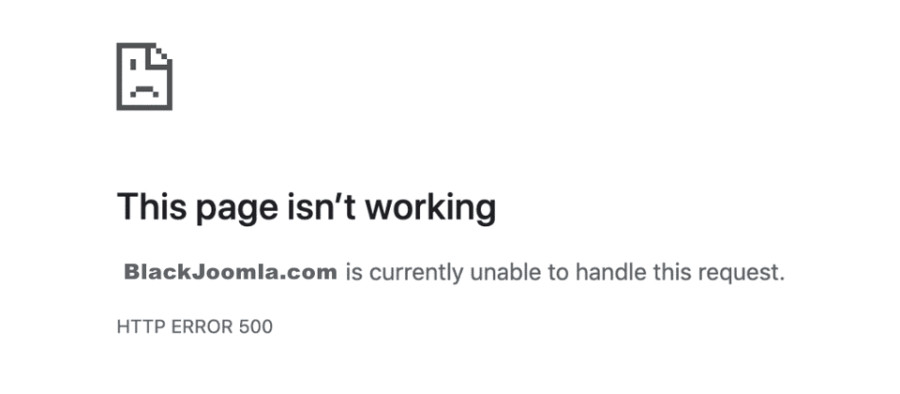
If your Joomla website suddenly displays HTTP ERROR 500, don't panic. In most cases, the cause can be identified by checking a few key areas.
This guide explains how to diagnose and fix a 500 Internal Server Error in Joomla, including situations where you cannot access the Joomla administrator panel.
What Causes a 500 Internal Server Error in Joomla?
There is no single cause of a Joomla 500 error. Some of the most common causes include:
- A PHP fatal error
- An incompatible or recently updated Joomla extension
- A template or plugin conflict
- Incorrect file or directory permissions
- An invalid
.htaccessconfiguration - An incompatible PHP version
- Insufficient PHP memory or server resources
- A timeout while connecting to an external service
- Corrupted or incomplete files
- Server configuration problems
The most useful first step is therefore not to randomly change settings, but to find the actual error behind the HTTP 500 response.
1. Check Whether the Error Is Temporary
Before changing your Joomla configuration, make sure the problem is not temporary.
A server may return a 500 error because of:
- Temporary server overload
- Hosting maintenance
- A temporary PHP or web-server problem
- A service or API becoming unavailable
Wait a few minutes and try loading the page again.
If the error continues, move on to the troubleshooting steps below.
2. Check Joomla and Server Error Logs
The fastest way to identify the cause of a 500 error is usually to check the relevant error logs.
Depending on your hosting environment, you may have access to:
- PHP error logs
- Apache error logs
- Nginx error logs
- Hosting control-panel logs
- Joomla logs
Look for entries created at approximately the same time the 500 error occurred.
A PHP fatal error or an extension-related error in the log can often immediately reveal which component is causing the problem.
For example, if the log identifies a specific extension immediately before the error, that extension should be one of the first things you investigate.
3. Enable Joomla Debugging
If you can still access the Joomla administrator area, Joomla's debugging options can provide useful information about what is happening.
Open:
System → Global Configuration → System
Then review the available debugging and error-reporting settings.
For troubleshooting, temporarily enable debugging and reproduce the problem.
Important: Debugging should generally be used temporarily, especially on a production website. Detailed error information can reveal technical information that should not be publicly exposed.
Once you have identified the problem, disable debugging again.
4. Check Recently Installed or Updated Extensions
A Joomla extension can cause a 500 error if it is:
- Incompatible with your Joomla version
- Incompatible with your PHP version
- Corrupted
- Incompletely installed
- Incorrectly configured
- Conflicting with another extension
This is particularly important if the 500 error appeared immediately after installing or updating an extension.
Think about what changed immediately before the error appeared.
For example:
Joomla was working → Extension updated → Website started showing HTTP 500
In that situation, the recently updated extension is an obvious candidate.
If possible, disable the extension and test the website again.
If you cannot access the Joomla administrator panel, you may need to disable the extension using your hosting tools or database, depending on the extension and your hosting environment.
Before making database changes, make sure you have a current backup.
5. Check PHP Version Compatibility
PHP compatibility is another important cause of Joomla errors.
Your website consists of several components that need to work together:
Joomla + PHP + Template + Extensions
Changing the PHP version can expose compatibility problems in an extension or template that previously worked correctly.
If the 500 error appeared immediately after changing your PHP version, check:
- Which PHP version was previously used.
- Which PHP version is currently active.
- Whether your Joomla version supports the selected PHP version.
- Whether your installed extensions and template support it.
Your hosting provider can usually help you check or temporarily change the PHP version.
Do not assume that simply upgrading to the newest available PHP version will fix every problem. Compatibility should be checked across your entire Joomla stack.
6. Check File and Directory Permissions
Incorrect permissions can prevent Joomla or the web server from accessing files and directories correctly.
Typical Linux permissions for Joomla installations are:
- 644 for files
- 755 for directories
However, the correct permissions can depend on your server configuration and ownership model.
Avoid setting files or directories to 777 simply to make an error disappear. This can create unnecessary security risks.
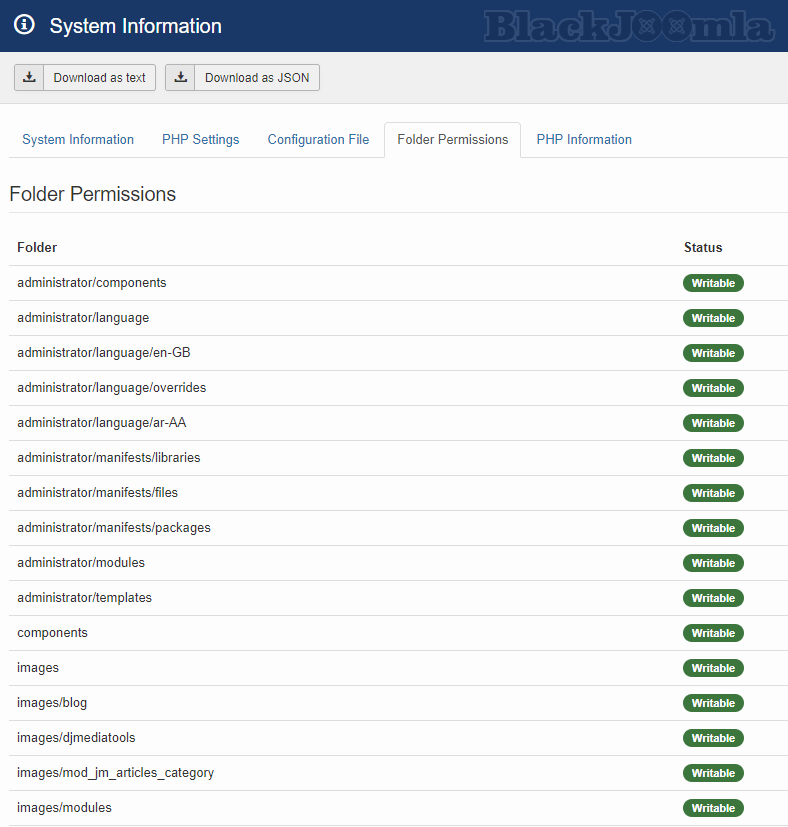
You can check Joomla's folder permissions from:
System → System Information → Folder Permissions
7. Check File Permissions Using FTP
You can also check permissions using an FTP client.
Locate the Joomla files and directories and inspect their permissions.
The exact interface depends on the FTP client you use, but File permissions is commonly available from the right-click menu.
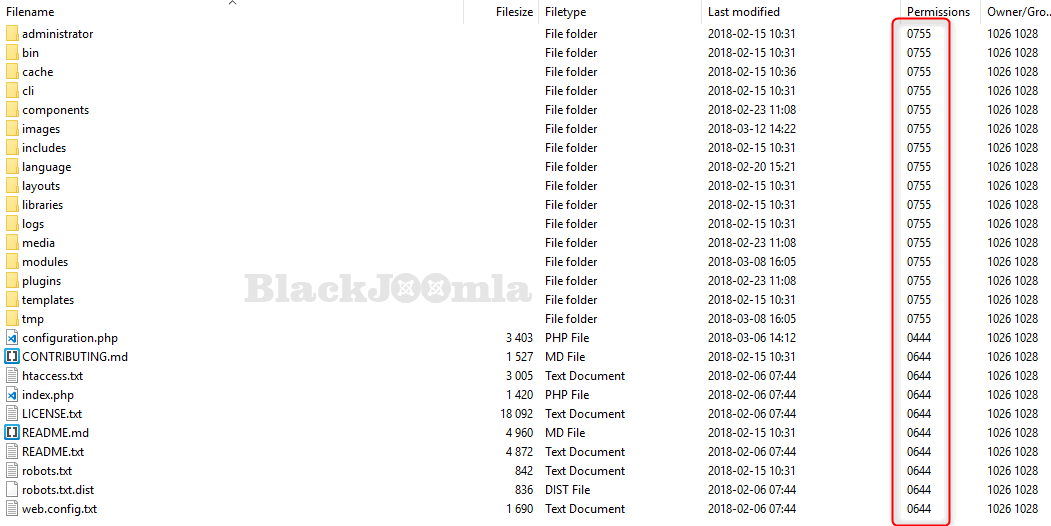
If permissions changed after uploading files, extracting an archive, restoring a backup, or migrating a website, correcting them may resolve the problem.
8. How to Change Joomla File Permissions
If you have confirmed that permissions are incorrect, you can usually change them through your FTP client or hosting file manager.
Right-click the relevant file or directory and select File Permissions.
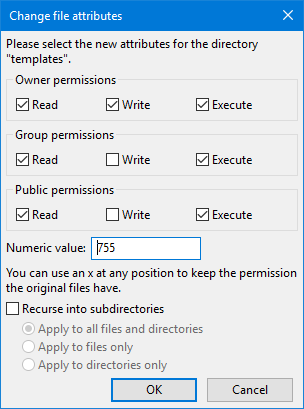
Do not change permissions indiscriminately across the entire website. First determine which files or directories have incorrect permissions.
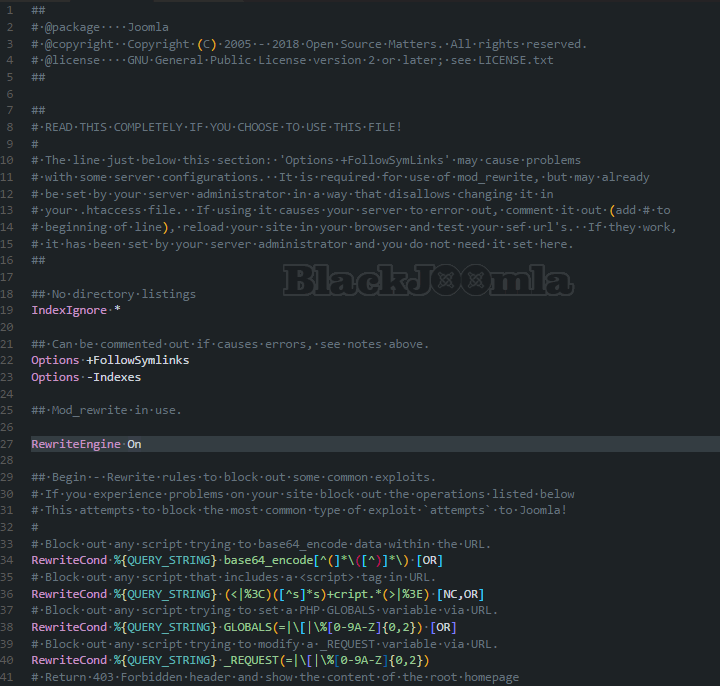
9. Check the .htaccess File
A damaged or incorrectly configured .htaccess file can cause server errors on Apache-based hosting environments.
This can happen after:
- Changing rewrite settings
- Installing or removing an extension
- Migrating a website
- Manually editing
.htaccess - Applying an incorrect server rule
If you suspect .htaccess , make a backup copy first.
For example:
.htaccess
Rename it temporarily to:
.htaccess.bak
Then test the website.
If the 500 error disappears, the .htaccess configuration is likely related to the problem.
Do not permanently delete the file before making a backup.
Also remember that .htaccess is primarily relevant to Apache-compatible server configurations. Nginx uses a different configuration system.
10. Check Your PHP Configuration
PHP configuration limits can sometimes contribute to server errors, especially when a Joomla operation requires more resources than the server allows.
Depending on the specific error, settings such as these may be relevant:
memory_limit
max_execution_time
max_input_time
max_input_vars
upload_max_filesize
However, do not increase these values blindly.
If your server log shows a memory exhaustion or timeout problem, adjust the relevant setting according to your hosting environment and the requirements of your Joomla website.
For example, if a large operation is timing out, increasing max_execution_time may be appropriate. Increasing upload_max_filesize , however, will not generally fix an unrelated HTTP 500 error.
11. Check for Corrupted or Incomplete Files
A 500 error can sometimes occur because Joomla or an extension contains missing or corrupted files.
This is particularly worth checking if the problem appeared after:
- A failed update
- An interrupted installation
- A migration
- Uploading files through FTP
- Extracting an archive
- Restoring a backup
If you know which extension or Joomla package was affected, reinstalling or restoring the affected files may resolve the problem.
Always keep a backup before replacing important files.
12. Check Server Resources
Your hosting environment may return a 500 error when the website reaches a server-side resource limit.
Possible limitations include:
- PHP memory
- CPU usage
- Process limits
- Disk space
- PHP worker limits
- Execution time
- Hosting account restrictions
If the website works normally most of the time but produces a 500 error during resource-intensive operations, check your hosting control panel and server logs.
Your hosting provider can usually determine whether your account reached a resource limit.
13. Check External Services and API Connections
Some Joomla websites depend on external services and APIs.
For example, an extension may communicate with:
- Payment services
- Email services
- Shipping APIs
- External databases
- Authentication services
- Third-party content services
If an external request fails or times out, the extension may generate an error on your website.
If the 500 error occurs only when a particular feature is used, check whether that feature depends on an external service.
14. What If You Cannot Access Joomla Administrator?
This is an important situation.
If both the front end and administrator area return a 500 error, you cannot simply log in to Joomla and disable an extension.
In this case, start with the server-side resources available to you:
- Check the hosting error logs.
- Check PHP error logs.
- Check Apache or Nginx logs.
- Review your most recent changes.
- Check file permissions.
- Check
.htaccess. - Identify recently installed or updated extensions.
- Restore a backup if necessary.
If you are unsure about making changes to the database or server configuration, contact your hosting provider rather than making potentially destructive changes.
15. Contact Your Hosting Provider
If you have checked the Joomla configuration, extensions, permissions and files but cannot identify the cause, your hosting provider is often the next best source of information.
Hosting administrators can usually access server-level logs and configuration information that is not available from Joomla itself.
When contacting support, provide:
- The exact URL producing the error
- The approximate time the error occurred
- What you changed immediately before the error
- Your Joomla version
- Your PHP version
- Any relevant error message from the logs
The more specific information you provide, the faster the problem can usually be diagnosed.
Quick Joomla 500 Error Troubleshooting Checklist
If your Joomla website suddenly displays 500 Internal Server Error, work through this checklist:
- Check whether the error is temporary.
- Check PHP and server error logs.
- Enable Joomla debugging temporarily if administrator access is available.
- Check recently installed or updated extensions.
- Check template compatibility.
- Check your PHP version.
- Check file and directory permissions.
- Check
.htaccess. - Check PHP memory and execution limits.
- Check available server resources.
- Check external APIs and services.
- Restore a recent backup if necessary.
- Contact your hosting provider if the cause remains unclear.
Final Thoughts
A 500 Internal Server Error in Joomla can look like a serious problem because the message itself provides very little information.
The good news is that the error is usually a symptom rather than the actual problem.
The key to fixing it is to identify what changed and then use the available logs and diagnostic information to find the underlying cause.
If the error appeared immediately after installing or updating an extension, start there. If it appeared after changing PHP, investigate PHP compatibility. If it appeared after modifying .htaccess , check the server configuration. And if none of these explain the problem, your hosting provider's server logs are often the best place to look next.
Do not randomly change multiple server settings at once. Make one change, test the website, and record the result. This makes troubleshooting much faster and helps you identify the actual cause.
Frequently Asked Questions
Why does Joomla show a 500 Internal Server Error?
A Joomla 500 error means the server encountered an unexpected condition while processing the request. Common causes include PHP errors, incompatible extensions, incorrect permissions, .htaccess problems, resource limits and server configuration issues.
Can a Joomla extension cause a 500 error?
Yes. An extension can cause a 500 error if it is incompatible with your Joomla or PHP version, corrupted, incorrectly configured, or conflicting with another extension.
Can changing the PHP version cause a Joomla 500 error?
Yes. A Joomla extension or template may not be compatible with the PHP version currently configured on your server. If the error started immediately after a PHP change, compatibility should be one of the first things you investigate.
Can incorrect permissions cause a Joomla 500 error?
Yes. Incorrect file or directory permissions can prevent Joomla or the web server from accessing required resources. Check the permissions and file ownership rather than simply setting everything to 777 .
How can I fix a Joomla 500 error without administrator access?
Start by checking your hosting and PHP error logs. Then investigate recent extension or PHP changes, file permissions, .htaccess , server resources and other server-side configuration. A recent backup may also provide a safe recovery option.
Should I delete .htaccess to fix a 500 error?
Do not immediately delete it. Make a backup or temporarily rename the file and test the website. If the error disappears, investigate the .htaccess configuration.
When should I contact my hosting provider?
Contact your hosting provider when you cannot identify the cause from Joomla and PHP logs, or when you suspect a server configuration, resource-limit or web-server problem.