Why Should You Back Up Your Joomla 6 Website?
Your Joomla website contains more than articles and images. It also includes configuration files, extensions, templates, user accounts, menus, database records, and other data required for the website to function correctly.
A backup gives you a recovery point that you can use when:
- A Joomla core update or extension update breaks your website.
- An extension or template causes a fatal error.
- You accidentally delete important files, articles, or database records.
- Your hosting server experiences hardware or software failure.
- Your website is compromised or infected with malware.
- You need to migrate your website to another hosting provider or server.
- You want to test significant changes without risking your live website.
For more information about protecting your website, see our guide on how to secure a Joomla 6 website.
What Should You Back Up in Joomla 6?
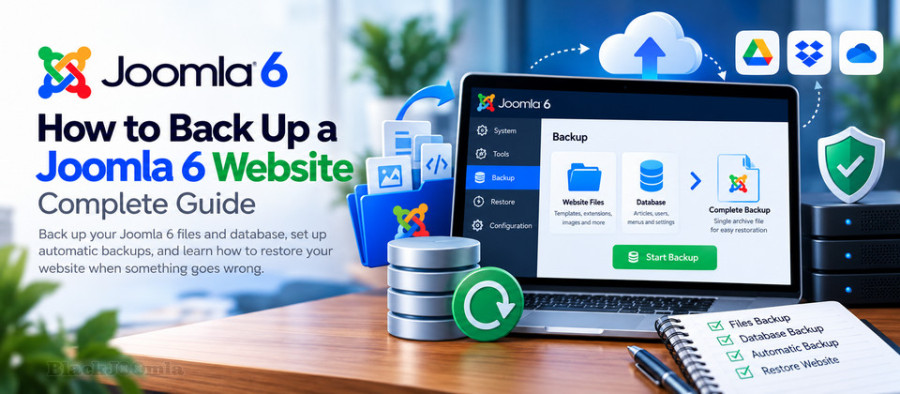
A complete Joomla backup consists of two essential components: website files and the database. Both are necessary to restore the website to its previous working condition.
1. Joomla Website Files
Your Joomla installation contains files and directories responsible for the website's structure, design, functionality, and uploaded content. Important items include:
- Administrator: The Joomla administration interface and related files.
- Components, Modules, and Plugins: Installed extensions and their application files.
- Templates: Website templates, stylesheets, scripts, and custom template overrides.
- Images and Media: Uploaded images, documents, and other media files.
- Configuration.php: The main Joomla configuration file, containing important site and database settings.
- Other Joomla directories: Additional files required by the core system and installed extensions.
2. Joomla Database
The database stores most of your website's dynamic content and configuration data, including:
- Articles, categories, and tags.
- Menu items and module settings.
- User accounts and access permissions.
- Extension configuration and stored data.
- Website configuration records and other Joomla content.
If you back up only your files, you may lose articles and other database records. If you back up only the database, you may not have the images, extensions, templates, and other files required to run the website.
Best practice: Always create a backup that includes both the Joomla files and the database. If you use a backup extension, verify that its configuration includes all the data your website needs.
Method 1: Back Up Joomla 6 Using Akeeba Backup
Akeeba Backup is a widely used backup extension for Joomla. It can create a backup archive containing your website files and database, helping you restore or transfer your website when necessary.
The Joomla Extensions Directory lists Akeeba Backup as compatible with Joomla 6. Always check the current release requirements and extension documentation before installation.
Step 1: Download Akeeba Backup
Visit the official Akeeba website and download the version compatible with your Joomla installation. Make sure you obtain the extension from the developer's official website rather than an untrusted third-party download source.
Step 2: Install the Extension
- Log in to your Joomla 6 administrator dashboard.
- Navigate to System → Install → Extensions.
- Upload the Akeeba Backup installation package.
- Wait for Joomla to complete the installation.
- Open Akeeba Backup from the administrator interface.
Step 3: Configure Akeeba Backup
When you open Akeeba Backup for the first time, review its configuration and run the configuration wizard if it is available in your installed version.
Pay particular attention to the following settings:
- Backup archive format: Choose an archive format supported by your backup and restoration workflow.
- Backup output directory: Check where backup archives are stored and whether the directory is protected from public access.
- Database inclusion: Make sure the database used by your Joomla website is included.
- File and directory exclusions: Exclude only files that you are certain are unnecessary for restoration.
- Storage capacity: Ensure that your hosting account has enough free disk space for the backup process.
Step 4: Create a Full Website Backup
- Open the Akeeba Backup control panel.
- Select the backup option.
- Enter a short description for the backup, such as Before Joomla Update.
- Start the backup process.
- Keep the process running until it finishes.
- Review the completion message and any warnings or errors.
A successful backup process is an important first step, but it does not guarantee that the archive can be restored correctly. Download a copy of the archive and test the restoration process in a separate environment whenever possible.
Step 5: Download and Store the Backup
Do not rely exclusively on a backup archive stored on the same hosting account as your website. If the server or hosting account becomes unavailable, you could lose both the website and its backup.
Download the backup archive and store an additional copy in a secure location, such as:
- Your local computer or an external hard drive.
- A secure cloud storage account.
- A separate backup server or remote storage service.
Some remote storage and automation options depend on the Akeeba Backup edition and configuration. Check the documentation for your installed version before relying on a particular feature.
For detailed instructions, visit the official Akeeba Backup documentation.
Method 2: Back Up Joomla 6 Manually
You can also create a Joomla backup without installing a backup extension. This method requires access to your hosting control panel, file manager, FTP or SFTP account, and database management tool.
Step 1: Download Joomla Website Files
Log in to your hosting control panel and open the File Manager. Locate your Joomla installation directory, which is commonly named public_html, httpdocs, or another directory configured by your hosting provider.
- Open the Joomla root directory.
- Select the files and directories belonging to your website.
- Compress them into a ZIP archive if your hosting panel supports this feature.
- Download the archive to your computer.
You can also use an FTP or SFTP client to download the Joomla files. SFTP is preferable when available because it encrypts the connection between your computer and the server.
Important: Make sure you include hidden files, such as .htaccess, when they are part of your website configuration. Your file manager may have a setting to display hidden files.
Step 2: Export the Joomla Database
Joomla stores most of its website content and configuration data in a database. You can export it using phpMyAdmin or another database management tool provided by your hosting company.
- Open your hosting control panel.
- Launch phpMyAdmin.
- Select the database used by your Joomla website.
- Open the Export tab.
- Choose the Quick export method and SQL format for a straightforward export.
- Click Export or Go, depending on your phpMyAdmin version.
- Save the generated SQL file to your computer.
If your database is large, the export process may require additional configuration or command-line tools. In that situation, contact your hosting provider or use the database backup facilities available on your server.
Step 3: Store Both Backup Files Securely
After completing the export, you should have at least two backup files:
- A ZIP archive containing your Joomla website files.
- An SQL file containing your Joomla database.
Give both files a clear name that includes the website name and backup date. For example:
joomla-files-2026-10-31.zipjoomla-database-2026-10-31.sql
Store the files outside your public website directory and keep an additional copy in a separate location.
Method 3: Create Automatic Joomla 6 Backups
Manual backups are useful, but they depend on someone remembering to create them. For websites that receive regular updates, publish new content, or process user submissions, automated backups can reduce the risk of losing recent data.
You can automate backups through a compatible Joomla backup extension or server-level scheduling tools such as cron jobs. The available options depend on your hosting environment and the extension edition you use.
Option 1: Use a Joomla Backup Extension
A backup extension such as Akeeba Backup can provide backup scheduling options, depending on the installed edition and configuration.
Before enabling automatic backups:
- Choose a schedule appropriate for how frequently your website changes.
- Set a retention policy so old backup archives do not fill your hosting storage.
- Configure remote storage if your backup solution supports it.
- Enable failure notifications where available.
- Periodically review backup logs and confirm that scheduled jobs are completing.
Option 2: Use Cron Jobs on Your Hosting Server
A cron job is a server-level scheduling mechanism that runs a command or script at a specified time. Some Joomla backup extensions provide dedicated scripts or instructions for running backups through cron.
The general process is:
- Check whether your hosting provider supports cron jobs.
- Read the backup extension's documentation for its supported scheduling method.
- Configure the required command or script using the exact path and parameters provided by the extension.
- Choose an appropriate execution schedule.
- Run a test and check the resulting backup archive and logs.
Do not copy a cron command from another website without checking that it matches your installed extension version and server configuration. An incorrect command may fail silently or run with insufficient permissions.
How Often Should You Back Up Joomla 6?
The ideal backup frequency depends on how often your website changes and how much data you can afford to lose.
| Website Type | Suggested Backup Frequency |
|---|---|
| Static business website | Weekly, and before major changes |
| Blog or content website | Daily or several times per week |
| Active eCommerce website | Daily or more frequently, depending on transactions |
| Membership or community website | Daily, with more frequent database backups if needed |
| Website undergoing major updates | Immediately before each major change |
These are general starting points, not fixed rules. For websites that process orders, payments, registrations, or frequent user submissions, the database may need more frequent backups than the website files.
How to Restore a Joomla 6 Website from a Backup
A backup is useful only if you can restore it when necessary. The restoration process depends on how the backup was created.
Restoring a Backup Created with Akeeba Backup
Akeeba provides restoration tools for its backup archives. The exact procedure depends on the archive format and the restoration method supported by your installed version.
A typical restoration workflow includes:
- Download the backup archive to the destination server.
- Obtain the appropriate restoration tool, such as Akeeba Kickstart, from the official developer website.
- Upload the required restoration files to the destination directory.
- Extract the backup archive using the restoration tool.
- Follow the installer instructions.
- Provide the destination database details when requested.
- Complete the restoration and remove temporary restoration files as instructed.
- Test the restored website, administrator login, extensions, media, and database connectivity.
For the exact procedure, follow the Akeeba Backup restoration documentation.
Restoring a Manual Joomla Backup
If you created the backup manually, you must restore the website files and database separately.
1. Restore the Website Files
- Prepare the destination directory on your server.
- Upload the ZIP archive containing your Joomla files.
- Extract the archive into the correct directory.
- Check that the Joomla files and directories are in the expected locations.
2. Restore the Database
- Create a new database or prepare the destination database.
- Open phpMyAdmin or another database management tool.
- Select the destination database.
- Import the SQL backup file.
- Wait for the import process to finish and check for errors.
3. Check the Joomla Configuration
Open the configuration.php file and verify that the database connection settings match the destination server. Important settings include:
$host: Database server hostname.$user: Database username.$password: Database password.$db: Database name.$dbprefix: Database table prefix.
If you are restoring the website to a different domain or server, other configuration values may also need to be reviewed. Do not expose your configuration file publicly because it contains sensitive connection information.
4. Test the Restored Website
After restoration, check the following items before considering the recovery complete:
- The homepage and internal pages load correctly.
- You can log in to the Joomla administrator dashboard.
- Articles, categories, menus, and modules are available.
- Images and uploaded files display correctly.
- Installed extensions and templates work as expected.
- Forms, user registration, and other important functions operate correctly.
- There are no unexpected PHP errors or database connection problems.
Whenever possible, test the restoration on a staging website before replacing your live website.
Joomla 6 Backup Best Practices
Following a consistent backup strategy makes recovery easier and reduces the risk of losing important website data.
1. Keep Backups in More Than One Location
Do not store every backup on the same server as your live website. Keep at least one additional copy in a separate location, such as secure cloud storage or an external drive.
2. Protect Backup Archives
Backup archives may contain database records, user information, configuration files, and other sensitive data. Store them in a protected location, restrict access, and use encryption when supported by your backup solution.
3. Keep Multiple Backup Versions
Do not overwrite your only backup every time you create a new one. Keep several recovery points so you can return to an earlier working version if a problem remains undetected for several days.
4. Create a Backup Before Every Major Update
Before updating Joomla core, installing a major extension release, changing your template, or modifying important configuration settings, create a fresh backup.
If you are preparing to upgrade your website, read our guide on upgrading from Joomla 5 to Joomla 6.
5. Test Your Backups Regularly
Check that backup archives are complete and can be extracted. More importantly, periodically restore a backup in a separate test environment. A backup that has never been tested may fail when you need it most.
6. Monitor Storage Space
Full website backups can consume considerable disk space, especially when your website contains many images, documents, and downloadable files. Set a retention policy and remove obsolete backup archives after confirming that newer copies are valid.
7. Be Careful When Recovering a Hacked Website
If your Joomla website has been hacked, restoring an old backup does not automatically remove the security problem. The backup itself may contain compromised files or database content.
Before restoring a potentially infected website, identify the cause of the compromise, inspect the backup, and make sure the restored installation is clean. Follow our guide on cleaning a hacked Joomla 6 website for more information.
Frequently Asked Questions About Joomla 6 Backups
Does Joomla 6 Have a Built-in Full Backup Feature?
Joomla's core system does not provide a complete one-click backup and restoration solution for the entire website. You need to use hosting backup tools, manual file and database exports, or a dedicated backup extension.
What Is the Best Backup Extension for Joomla 6?
Akeeba Backup is one of the established backup solutions for Joomla and is listed as compatible with Joomla 6 in the Joomla Extensions Directory. Review the current version, server requirements, and available features before installing it.
Can I Back Up Joomla 6 Without an Extension?
Yes. You can download your Joomla files through a hosting file manager or SFTP client and export the database through phpMyAdmin. Both parts must be backed up for a complete manual recovery.
Where Should I Store Joomla Backup Files?
Keep at least one copy outside your website's hosting account. Secure cloud storage, an external hard drive, or a separate backup server can provide additional protection.
How Do I Know if My Joomla Backup Works?
Check that the archive was created without errors, download it, and verify that it can be extracted. The most reliable test is to restore it to a separate staging environment and check that the website works correctly.
Can I Restore a Joomla 6 Backup on Another Server?
Yes, provided that the destination server meets the requirements of the Joomla installation and the backup restoration method. You may need to update database connection details, file paths, domain settings, and other server-specific configuration values.
Should I Back Up My Joomla Website Before Updating Extensions?
Yes. Create a backup before major extension, template, or Joomla core updates. This gives you a recovery point if an update causes compatibility problems or breaks website functionality.
Final Thoughts
Regular backups are essential for maintaining a reliable Joomla 6 website. Whether you choose Akeeba Backup, manual file and database exports, or hosting-level backup tools, make sure your backup includes both website files and the database.
For better protection, keep copies in separate locations, maintain multiple recovery points, monitor backup jobs, and test restoration regularly. A backup strategy is complete only when you know that you can successfully restore your website.